

Have you ever opened Google Maps to look up your own business and felt that sharp sense of frustration?
Your competitor is right there at the top of the Local Pack. And you? Your business is nowhere to be seen, maybe buried so far down the list that you stopped scrolling altogether.
It stings. Honestly, it feels personal.
You know you offer a solid service, your prices are fair, and your customers leave happy every time.
So you ask, why does Google keep sending the calls, the clicks, and the foot traffic to someone else?
Here’s what’s really happening.
In 2026, Google isn’t ranking local businesses based on who tries harder or who has been around the longest. It’s responding to signals, clear, measurable signs that help its AI decide which businesses are trustworthy, active, and relevant right now.
That Local Pack you see isn’t random. It’s powered by location data, real customer behavior, review patterns, profile activity, and consistency across the web. Google watches how people interact with businesses and learns which ones deliver on what they promise.
This means that ranking higher on Google Maps isn’t about quick hacks or clever shortcuts anymore. Instead, it’s about shaping your business in a way that matches exactly how Google measures local trust and relevance today.
Once you understand those signals and start feeding them correctly, you stop wondering why competitors are winning and start seeing your own business rise where it belongs.
What Is Google Maps?
Google Maps is more than just a map. It’s a complete platform for discovering, navigating, and interacting with businesses near you. Whether someone searches for “best plumber in New York” or “hair salon near me,” Google Maps shows locations, directions, and key details all in one place.
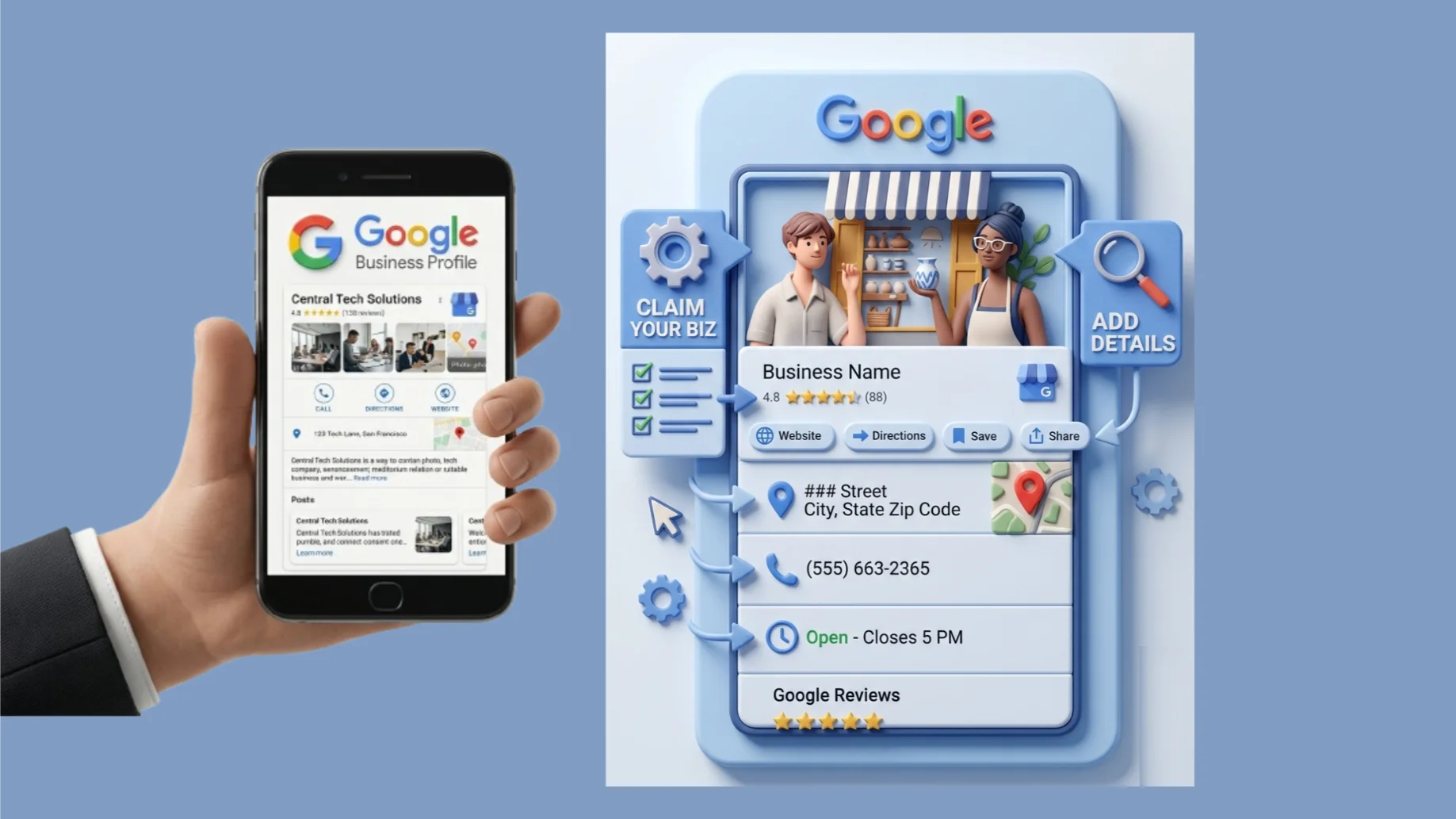
On the platform, each business listing can display the name, address, phone number, hours, star rating, photos, and reviews. The goal is simple: speed and convenience. Users can get directions, call a business, or check reviews instantly, all without leaving the app or website.

Over the years, Google Maps has evolved from a simple mapping tool into a dynamic local search engine.
By 2026, it’s a core part of both mobile and desktop search, integrated with AI-driven overviews, real-time traffic updates, and even blended paid and organic listings in certain local results.
Despite these changes, Google Maps remains the most trusted tool for local discovery. People use it to find nearby businesses, plan routes, check ratings, and interact directly with businesses.
For local businesses, being visible on Google Maps is a direct line to customers who are actively looking for your services and ready to engage, whether that’s calling, visiting, or leaving a review.
Why Google Maps Rankings Matter More Than Ever
Local searches have become highly intentional. People aren’t just browsing, they’re looking for solutions they can act on immediately.
In fact, “near me” searches have surged in recent years, and a large percentage of them result in an actual purchase.
When someone uses Google Maps to search for a business, they are often ready to visit a store, make a call, book a service, or get directions without delay.
Being visible at the top of these results can drive a significant increase in customer interactions, from calls and walk-ins to sales, all without spending a dime on ads.
High rankings on Google Maps are a direct pathway to real, measurable business growth.
How Google Decides Who Ranks Higher on Google Maps
Google doesn’t simply guess which businesses should appear at the top of local searches. Instead, it relies on three key signals to determine rankings:
1) Relevance
This measures how closely your business matches the user’s search query. The more your products, services, and categories align with what people are looking for, the higher your relevance score.
2) Distance
This refers to how close your business is to the searcher’s location. While you can’t control where someone is searching from, being nearby gives you a natural advantage in local results.
3) Prominence
This reflects how well-known and trusted your business appears online. Google looks at factors like reviews, ratings, website authority, and mentions across the web to gauge prominence.
While distance is out of your control, you can actively improve both relevance and prominence.
How to Rank Higher on Google Maps
Climbing the ranks on Google Maps doesn’t have to feel overwhelming. With the right steps, you can make your business more visible to the local customers who are actively searching for what you offer.
Here’s a step-by-step guide to get you started.
1) Add Your Business to Google Maps
The first step is simple: make sure your business is listed on Google Maps. If it’s already there, great, you can move on to optimizing it. If not, adding it is straightforward.
Start by logging into Google Maps on your computer. You have a few ways to add your business:
- Type your address into the search bar, then in the Business Profile section on the left, select “Add your business.”
- Right-click any location on the map and choose “Add your business” from the menu.
- Click the Menu in the top-left corner and select “Add your business.”
From there, just follow the prompts to complete your Business Profile.
A few tips while setting up:
- Enter your business name exactly as it appears on your store signage, website, letterhead, and any other brand materials. Consistency matters.
- If you change the business name after requesting a verification letter, you’ll need to go through verification again.
Another easy way to add or check your listing is by visiting Google Business Profile while signed in to your Google account.

Choosing the Right Categories
Selecting the right category is crucial. Your primary category tells Google exactly what your business does, which helps it appear in the right searches.
You can add up to nine additional categories, but the first one is the most important.
If you have multiple business locations, make sure all of them share the same primary category. Choose one that truly reflects what your business is all about, and the rest will fall into place naturally.
2) Claim Your Google Maps Listing
Creating a listing is just the beginning; you put in the basics like your business name, category, and location. But claiming your listing is where you get to really showcase your business and take control of how it appears on Google Maps.
The more complete and accurate your profile is, the more Google will trust it, which can help you rank higher in local searches.
Even if your business was already added by someone else, you can claim it and become the verified owner. Here’s how:
- Open Google Maps on your computer.
- Type your business name into the search bar and select the correct listing from the results.
- Click “Claim this business” and then “Manage now.”
- If you’re claiming a different location, select “I own or manage another business.”
- Follow the prompts to choose a verification method and complete the process.
Google reviews each verification request carefully to ensure listings are accurate and trustworthy. This usually takes about a week, and you’ll get a notification once your business is verified.
If your first verification attempt doesn’t work, don’t worry, Google will show a “Get verified” option again. That’s your cue to try a different verification method until your listing is fully confirmed.
Claiming your listing is more than a checkbox. It’s your opportunity to control your presence, share your story, and make sure customers see the real you when they search for your business.
3) Edit Your Google Business Profile
Once Google has verified your business, you gain full control over your Business Profile. This is your chance to make sure every piece of information is accurate, up-to-date, and optimized so potential customers can find you quickly and easily.
A complete, well-maintained profile is a signal to Google that your business is trustworthy, which can improve your ranking on Google Maps.
To make edits directly through Google Search or Google Maps, here’s what to do:
- Access your Business Profile.
- To edit:
- In Google Search, click “Edit profile.”
- In Google Maps, click “Edit profile” and navigate to “Business information.”
- In Google Search, click “Edit profile.”
- After making any changes, always click “Save” to ensure your updates are applied.
You can adjust your location, hours, contact info, photos, and more. The goal is to give new customers all the key details they need to find your business and understand what you offer.
4) Keep NAP Consistent
One of the most critical elements of your Business Profile is consistency. Your Name, Address, and Phone Number (NAP) must match your storefront, website, social media pages, and any other online listings.
Google uses this information to verify your business and ensure it’s real, which directly impacts your ranking.
- Business Name: Make sure your name is exactly as it appears on signage, letterhead, and marketing materials. If you have multiple locations, you can add the city after your business name to differentiate each branch.
- Address: Enter the full, precise address, including suite numbers, floors, or unit details if applicable. If you don’t have a physical location where customers can visit, you can leave the address blank. Changing your address after verification requires re-verifying your business.
- Service Areas: You can specify service areas by city, postal code, or region. This tells customers where you deliver, visit, or provide services.
- Phone Numbers: Add your main business number, plus up to two additional numbers (mobile or landline, no fax).
- You can also choose to hide your phone number if you prefer. To do this:
- Open your Business Profile.
- Click “More” → “Business Profile settings.”
- Go to “Advanced settings” and toggle the “Don’t show” option under the phone number section.
- Open your Business Profile.
Keeping NAP consistent across all platforms builds trust with Google and customers alike.
5) Set Up Your Business Hours and Attributes
Business hours are another crucial part of your profile. Nothing frustrates a customer more than showing up when your doors are closed. Setting accurate hours ensures people know exactly when they can visit or contact you.
Here’s how to set your hours:
- Open your Business Profile.
- To edit:
- In Google Search, click “Edit profile.”
- In Google Maps, click “Edit profile” → “Business information.”
- In Google Search, click “Edit profile.”
- Click on the “Hours” tab and then “Edit.”
- Tick the days your business is open and use the dropdown menus to set operating hours.
- Click “Save” once you’ve finished.
If your business operates 24 hours, select the “24 hours” option for each day. If your business closes for breaks during the day, you can create multiple time entries. For example, if you’re open 8 AM–3 PM, break, and then 5 PM–11 PM:
- Set Friday: 8:00 AM–3:00 PM.
- Click “Add hours” and set 5:00 PM–11:00 PM.
- Click “Save.”
You can also add “More hours” for specific services like takeout, delivery, or drive-through. For instance, a bistro open 8 AM–10 PM could list:
- Main hours: 8 AM–10 PM
- Happy hour: 5 PM–7 PM
- Takeout: 9 AM–7 PM
If you want to hide hours, select “Open with no main hours.” For seasonal or temporary closures, mark your status as “Temporarily closed.”

Attributes: Show What Makes Your Business Unique
Attributes let you highlight features like outdoor seating, Wi-Fi, wheelchair accessibility, or women-owned status. These details make your profile more attractive to searchers and can help your business appear in relevant searches.
Some attributes may vary by location or business type, and Google occasionally updates the names to match how people search.
Adding attributes does more than make your profile look complete. It boosts visibility. When you specify features that match what people are searching for, Google is more likely to show your business across its ecosystem, including Search, Maps, and other connected services.
You can add attributes by going to the “More” tab in your Business Profile under Business information.
6) Add Your Website, Social Links, Photos, and Description
Now that your business is verified and your basic information is in place, it’s time to bring your profile to life. This step is where your business really starts to shine on Google Maps.
Website links are essential. Depending on your business type, you may have the option to add extra links beyond your main site, such as links for placing online orders, booking appointments, or making reservations. These direct links make it easy for customers to take action immediately, improving their overall experience with your business.
Social media links can also help you connect with your audience. While availability depends on your region, in some areas you can link your Facebook, Instagram, LinkedIn, Pinterest, TikTok, X (formerly Twitter), and YouTube pages directly to your profile.
Google has even started surfacing posts from these linked accounts automatically in certain regions, giving your profile more dynamic content.
Photos and videos are another way to make your profile appealing. High-quality visuals of your storefront, products, or services can make a big impression and help customers feel familiar with your business before they even visit.
For businesses with 10 or more locations, Google allows image uploads via a spreadsheet, which is a huge time-saver.
When adding visuals, keep these guidelines in mind:
- Format: JPG or PNG
- File size: Between 10 KB and 5 MB
- Resolution: Aim for 720 px by 720 px, with a minimum of 250 px by 250 px
- Videos: Up to 30 seconds, maximum 75 MB, minimum 720p resolution
Including a photo of the exterior of your business helps first-time visitors spot your location easily, while interior or product photos show what people can expect inside.
Next is your business description, the “From the business” section. This is your chance to tell your story in 750 characters. Highlight what you offer, what makes your business unique, and share a glimpse of your journey.
Keep it informative, engaging, and promotional, but avoid mentioning prices, promotions, or URLs.
Treat it as a snapshot that introduces potential customers to your business and shows why you’re the best choice.
7) Publish Posts on Your Google Business Profile
Google favors active profiles, so keeping yours up to date is essential. Posting offers, events, products, and updates signals to Google that your business is active while giving customers a reason to engage.
Your Google Business Profile works like a mini social media channel, letting you connect directly with both new and returning customers.
Here’s how to create a post from Google Search on your computer:
- Open your Business Profile.
- Click “Add Update.”
- Choose the type of post you want to create.
- Fill in the required information in the dialog box.
- Decide whether to publish immediately or preview before posting.
On Google Maps using your Android, iPhone, tablet, or iPad:
- Open the Google Maps app and sign in to the account linked to your profile.
- Tap “Business” at the bottom-right corner.
- Select “Promote”, then pick the type of post.
- Add your content, photos, videos, text, events, offers, or call-to-action buttons and fill in all necessary details.
- You can either publish immediately or preview your post first. Tap “Publish” to go live or “Preview” to review your draft and make edits.
Google reviews posts before they go live to ensure compliance with content policies. Posts can have three statuses:
- Live: Visible on Google Search and Maps.
- Pending: Still uploading or awaiting processing; may require profile verification.
- Not approved: Violates Google’s content policies; check the question mark icon for details.
Tips for keeping posts compliant:
- Don’t include phone numbers.
- Keep content high-quality, accurate, and respectful.
- Only share trusted links; avoid harmful or inappropriate websites.
- Avoid mentioning regulated products, such as alcohol or pharmaceuticals.
- Keep content family-friendly, no sexually explicit or suggestive material.
Posts older than six months are archived automatically unless you set a specific date range. Regular posting keeps your profile lively and increases engagement with customers.
8) Encourage Google Reviews and Respond to Them
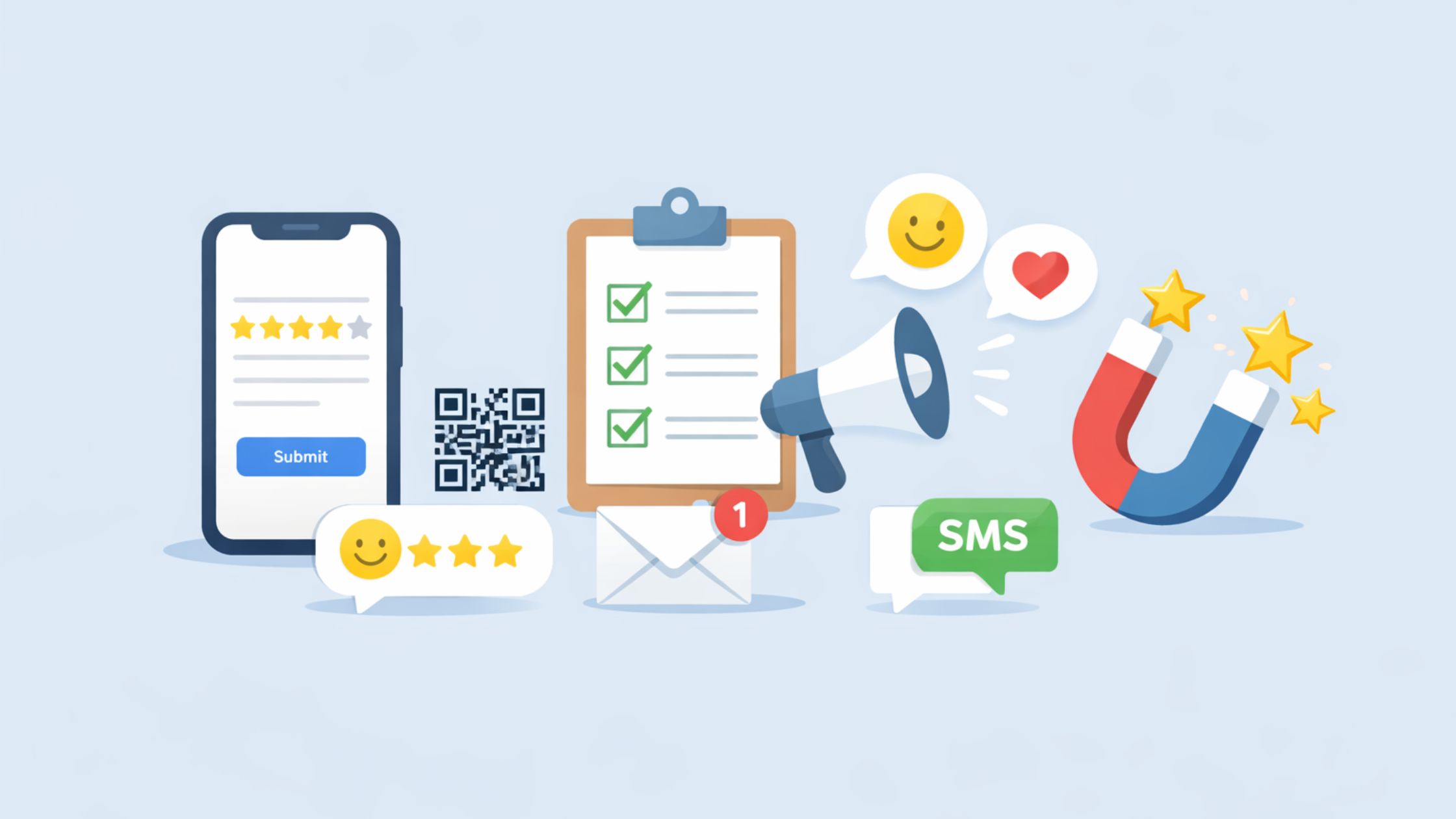
Google reviews are critical for visibility and trust. They show potential customers that real people have interacted with your business and valued the experience.
Luckily, Google makes it easy to create a review link and share it with your customers.
Here’s how to get your review link:
- Open your Business Profile.
- On Google Search: Click “Ask for reviews.”
On Google Maps: Go to “Customers” → “Reviews” → “Get more reviews.” - Share the link directly with customers via email, chat, receipts, or even QR codes generated through tools like Adobe Express.
Once reviews start coming in, responding is just as important as collecting them. Replies show that you care about customer feedback and help improve your online reputation.
Here’s how to respond effectively:
- Thank the reviewer: Positive or negative, acknowledgment shows attentiveness.
- Personalize your response: Use the reviewer’s name and reference specific points.
- Address concerns: Offer solutions or explain corrective actions.
- Stay professional: Even in response to negative reviews, maintain a respectful tone.
- Encourage further engagement: Invite the reviewer to return or contact you for more discussion.
Responding to reviews isn’t just polite; it’s a form of Google Maps marketing. It helps future customers see that you are attentive, engaged, and reliable.
Local SEO Tips To Help You Rank Higher on Google Maps
Once your Google Business Profile is polished and active, it’s time to boost your visibility beyond Google Maps.
These steps focus on your website and broader local SEO, helping you reinforce trust signals and attract more local customers.
9) Embed a Google Map on Your Website
Adding a Google Map directly to your website can subtly improve your local SEO. Embedding a map signals to Google that your business truly exists at the address listed in your profile, reinforcing credibility for both search engines and visitors.
The best locations for the map are your Homepage or Contact Us page. Here’s how to do it:
- Search for your business on Google Maps.
- Click “Share” in your listing.
- Choose “Embed a map.”
- Copy the HTML code.
- Paste it into your website’s contact page or wherever you want the map to appear.
You can choose small, medium, large, or custom sizes. Google also provides guidance for embedding maps with markers to highlight your exact location. A map reinforces your local presence and helps customers find you easily.
10) Optimize Your Website Content With Local Keywords
Even with a perfect Google Maps listing, your website needs to speak the same language as your customers. Using the right local keywords helps Google connect your business with relevant searches.
Focus on long-tail keywords, phrases of three or more words, showing strong local intent, e.g.:
- “Cleaning services in Savannah”
- “24-hour locksmith in Brooklyn”
Place these keywords naturally in:
- Page titles and meta descriptions
- Headings and subheadings
- Homepage, service pages, About Us, and Contact pages
Google also understands keyword variations, so use them naturally to maintain readability while signaling relevance.
11) Apply Additional Local SEO Strategies
To dominate local search, support your Google Maps profile with a network of credibility signals. Key strategies include:
- Claim other business citations: List your business on local directories and industry sites, keeping NAP consistent.
- Collect and respond to reviews: Encourage feedback across platforms and reply thoughtfully.
- Use local Schema markup: Structured data helps search engines understand your business location and services.
- Create local content: Blog about local events, news, or relevant topics to attract nearby customers.
- Optimize for voice search: Include conversational long-tail keywords, like “Where can I find the best sushi near me?”
- Build your backlink profile: Earn links from reputable, relevant websites to boost credibility.
- Monitor performance: Track traffic and search results with Google Analytics and Search Console, adjusting strategies based on real data.
Finally, ensure your website is mobile-friendly. Most local searches happen on smartphones, so a smooth mobile experience is essential for converting visitors into customers.
Our Google Maps SEO with Olitt Localforce
Optimizing your Google Business Profile, adding photos, managing reviews, and updating local keywords can feel overwhelming, especially while running a business. That’s where Olitt Localforce comes in.
Localforce works like a personal assistant for your Google Maps presence, helping you manage your profile, posts, reviews, and local SEO tasks in one place. It keeps your business organized, consistent, and visible to the customers who matter most.
How Localforce fits into your strategy:
- Spot gaps and fix issues: Scan your profile, highlight missing info, and guide fixes so Google understands your business clearly.
- Optimize categories and keywords: Align your profile with real local search terms, naturally integrating keywords.
- Keep your profile active: Regular posts, updates, and media show Google your business is engaged.
- Manage reviews: Collect, respond, and track reviews efficiently to boost trust and ranking.
- Track performance: Monitor clicks, calls, directions, and website visits to fine-tune your strategy.
Consistency is the key to ranking higher on Google Maps. Localforce makes it simple, turning your listing into a lead-generating machine and guiding you to stay visible to ready-to-engage customers.
Conclusion
Ranking higher on Google Maps is about giving Google the right signals and making it easy for customers to find and trust your business. From setting up a complete Google Business Profile to optimizing your website with local keywords, every step counts.
But managing all of these moving parts can get overwhelming. That’s where Olitt Localforce comes in. It simplifies your local SEO efforts, helps you stay consistent, and gives you clear insights into how your profile is performing, all from one dashboard.
If you’re ready to stop guessing and start showing up where it matters most, get started with Olitt Localforce today and watch your local visibility and customer traffic grow.